Filter Advanced Tab for Queries
Usually you will find what you need in the "More Parameters" section of the Filter window. If not, there is the additional option of using the query tool in the "Advanced" tab. This will open up a query tool that lets you construct queries to view one or more records in ways that might not otherwise be available.
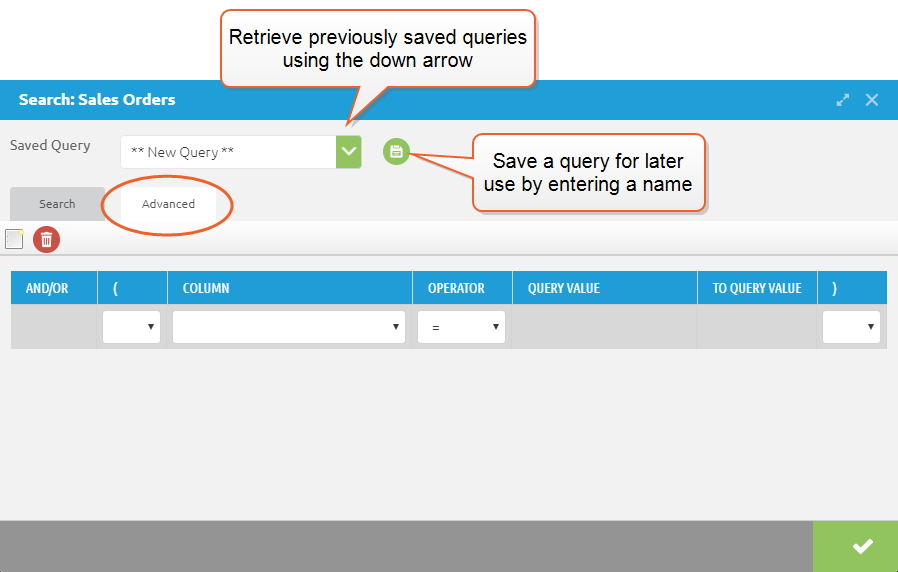
For example, you might want to view a list of all Sales Orders for which the customer invoice has not yet been generated. For this, we will search for Sales Order records based on the status of the "Invoiced" checkbox.
First, we selected the field name in the COLUMN field, then the operator "=", and the value "No". (Note that not all operators come up for all fields-- for instance, check boxes will offer only "Yes" or "No", where other fields will include operators such as ">" or ">=".)
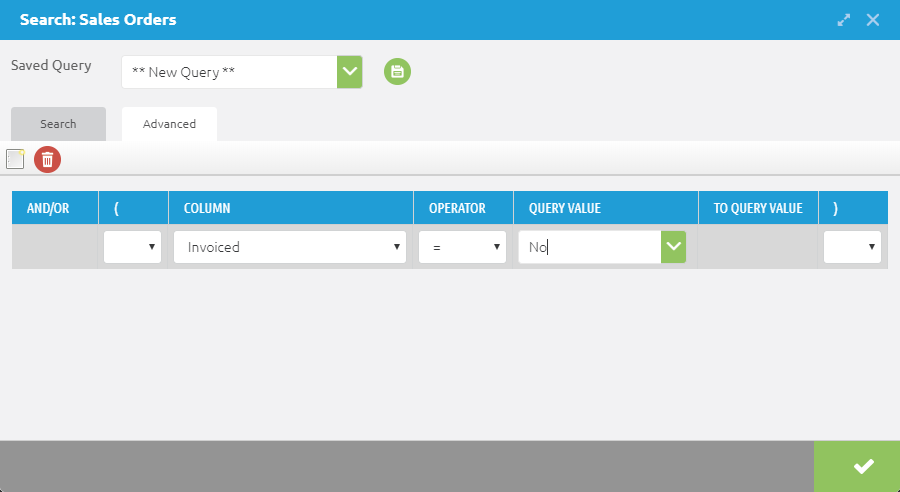
Clicking on the green checkmark in this case will show all Sales Orders that are waiting to be invoiced.
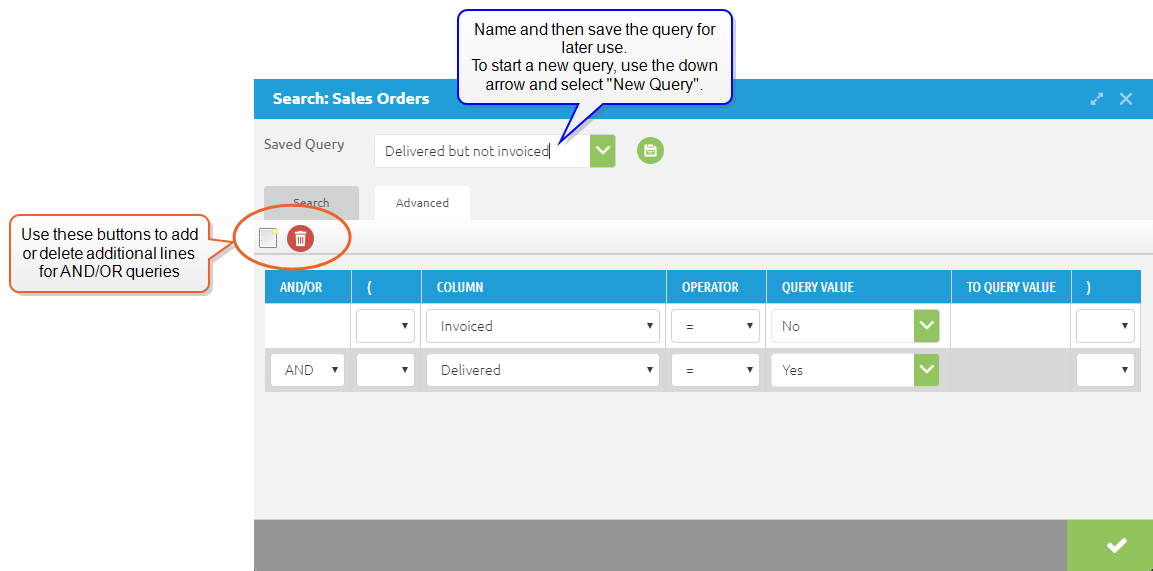
Additional lines can be added using the square icon above the AND/OR column (or removed using the trash can icon to its right). This allows for additional conditions AND/OR queries. For instance, you might wish to extend the query to display all records for Sales Orders that have been shipped to the customer, but not yet invoiced:
Some advanced operators are also available. For instance, the ">-<" (between) operator will allow you to search for records that fall between two values, for example within a given week. The available choices for this operator will change based on the COLUMN selection. In the example below, two date pickers are available to specify the range. In the case of a numeric COLUMN choice, the QUERY VALUE fields will accept numbers.
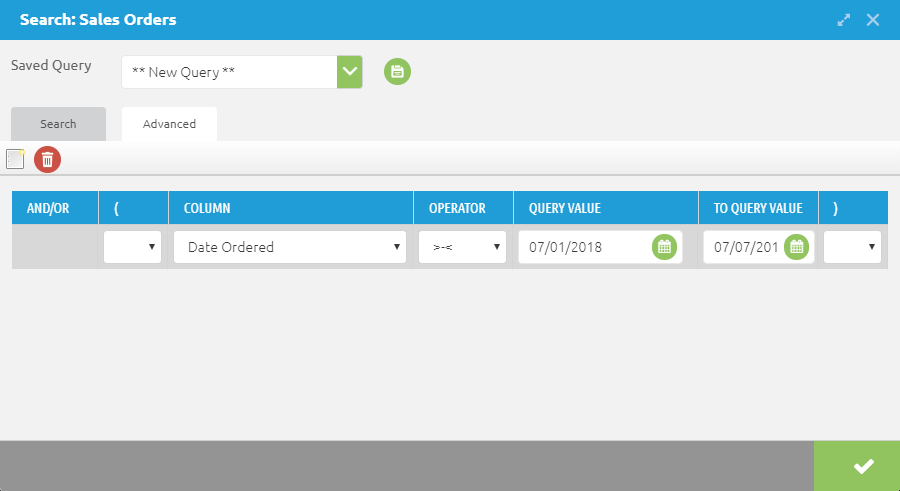
The potential operators are:
| Operator | Function |
| = | Exactly matches the value entered |
| != | Is not an exact match for the value entered |
| ~ | Used in conjunction with an additional operator to search within a given field -- see below for further description |
| !~ | See below for further description |
| > | Returns all values greater than the one entered. Can apply to dates as well as numbers. |
| >= | Returns all values greater than or equal to the one entered. |
| < | Less than |
| <= | Less than or equal to |
| >-< | Returns all values between the two that are entered. Can be used with dates, e.g. to specify a particular week. |
Using the ~ and !~ operators
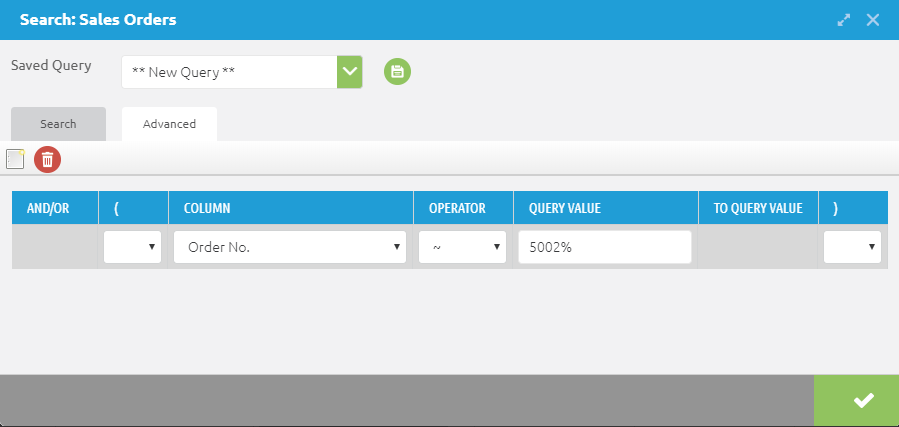
Whereas all of the other operators work on the value of a given field, the ~ (like) operator is used for searches within a given field. Typically you will use this in conjunction with the "%" (wildcard) operator in the QUERY VALUE field. In the example below, the query statement entered could be paraphrased as "all of the order numbers that begin with 5002".
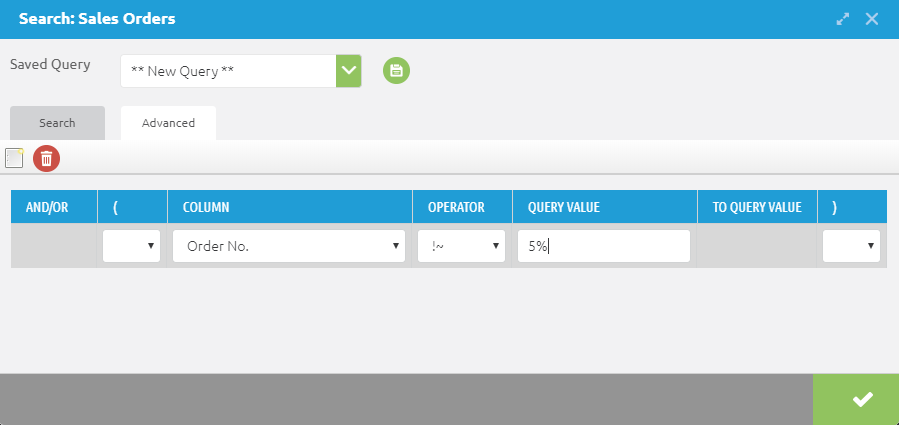
Conversely, the example below would return all of the Document Numbers that do not begin with 5.